
How FR Legends Livery Codes Work
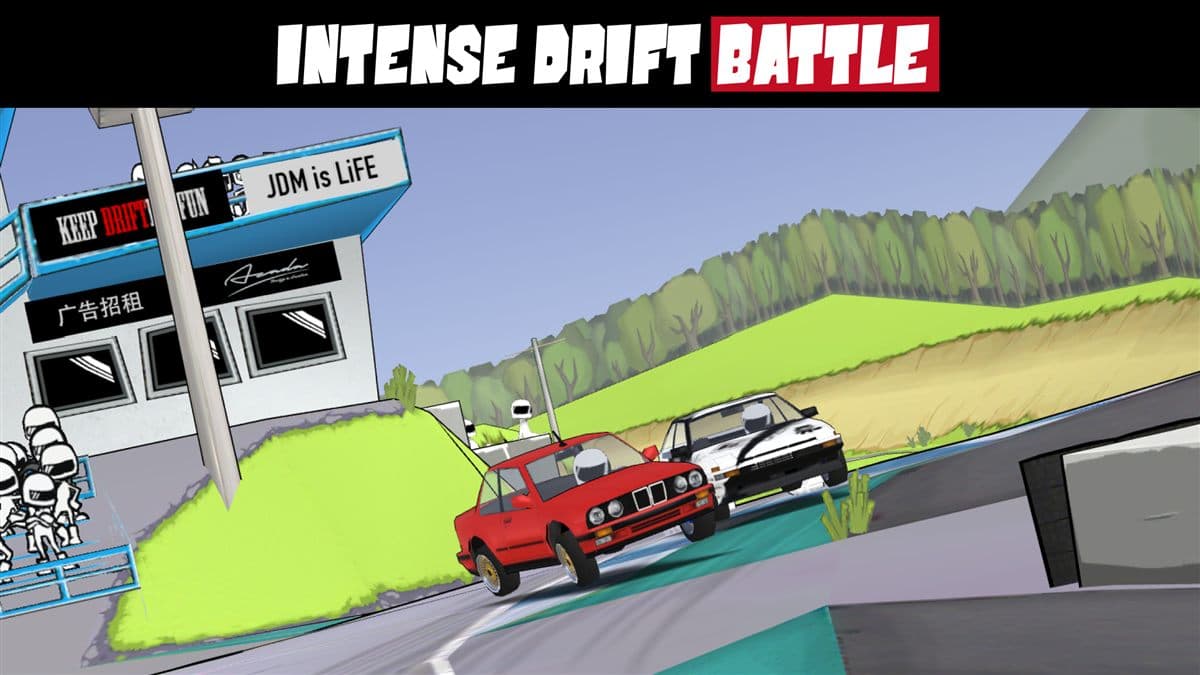
Livery codes are the currency of the FR Legends customization scene. Paste one into the livery editor and a complete paint job appears: base color, stripes, gradients, logos, and window graphics, all at once. They look like random strings of letters and numbers, but a code is really a compact text description of a full design. Once you understand what it stores, you can apply designs from anywhere, edit them to make them your own, and share your creations. This guide covers what a code contains, how to copy, paste, import, export, and share codes, where they come from, and how to avoid broken codes. We also cover mobile and PC emulator differences, with example codes and a FAQ at the end.
What a livery code actually contains
FR Legends saves every design as text. A full livery comes in two parts: a body code and a window code. The body code describes the paint: base color, the order of decal layers, where stripes and logos sit on the body panels, and how gradients fade. The window code does the same job for the glass, covering tint level and any window graphics.
Body codes
The body code is the one people share most. Every decal is stored as a layer with a position, a size, a rotation, and a color. The code keeps those layers in order, so the same string on the same car always produces the same design. Change one number and a stripe moves or a logo changes size.
Window codes
The window code follows the same logic for the glass: tint color, stickers, and edge designs are all stored as text. Some shared liveries include both codes. If a design looks incomplete after importing, a missing window code is usually the reason.
How to copy and paste a code
This is the part people want first, and it takes about thirty seconds. Follow these steps:
- Open FR Legends and go to the garage.
- Select the car you want to paint and open the livery editor from the garage menu.
- Copy the code from the source, using a long press on mobile or Ctrl + C on PC.
- Tap the code field in the editor, paste the code, and confirm.
- Save the design to a livery slot so it survives updates and later edits.
Paste into the right field: body codes into the body field, window codes into the window field. Mixing them up is the most common mistake. More guides live on our blog, covering livery tricks, drift builds, and game updates.
How to import a livery
Importing is the same as pasting, with a few extra checks that save you from wasted effort:
- Check the car first. Every code is built for a specific body, so a design shared for the Silvia will not sit correctly on the RX-7.
- Copy the code completely. Codes often wrap across two lines on sharing sites, so select the whole string.
- Paste it exactly as shared. Do not add spaces or line breaks, and do not retype characters by hand.
- Confirm and preview. If the design looks wrong, undo and check the field and the car.
We organize thousands of designs in our livery hub, and the curated anime and JDM collection gathers the community favorites ready to paste.
How to export and share your own livery
Sharing your own design is just as easy. Open the livery in the editor and copy the body and window codes from the code field. Paste them into a message or social post, label them with the car they were made for, and add a screenshot so people know what they are getting.
A code without a car name is a guessing game, so always include the car, and share both codes: a full livery is body plus windows. If you build something you are proud of, grab the latest game version from our download page and share your code with the community.
Where livery codes come from
- Community forums and Discord servers.
- Video descriptions and tutorials from creators.
- Social media posts, usually paired with a screenshot of the finished car.
- Curated collections like ours.
Popular cars get the most codes. The Supra, the RX-7, and the drift BMWs all have deep libraries of shared designs, and our full car list shows which cars are worth collecting codes for.
How to avoid broken codes
Most broken codes are not broken at all. They are usually the result of one of three problems: format issues, the wrong car, or a game version change.
Format problems
The code field is strict about format. Extra spaces, a missing character, or a line break in the middle of the string will stop the design from applying. Copy the code as one continuous string and paste it without reformatting.
Pasting onto the wrong car
The second most common cause is pasting a code onto the wrong car. A design made for the Silvia body will paste onto the RX-7, but every decal sits at the wrong height and the result looks scrambled. Check the car name in the source before you paste.
Game version changes
FR Legends updates can change how codes are stored, and codes from old versions sometimes fail on new builds. If a code worked before an update, look for a newer version in the source. Our old versions page lists earlier releases if you prefer a build you know.
Codes on mobile and PC emulators
FR Legends runs on Android phones and tablets, and many players run it on PC through an emulator. Codes work the same way on both, but the mechanics of copying them differ.
On mobile
On a phone, long press to select the code, drag the handles to cover the whole string, and copy. Paste by long pressing the code field. Watch out for autocorrect, which can quietly change characters.
On a PC emulator
On an emulator, use Ctrl + C and Ctrl + V, and keep codes in a text file next to the game for fast testing. Our PC emulator guide covers setup, and Apple users can check the iOS guide for options there.
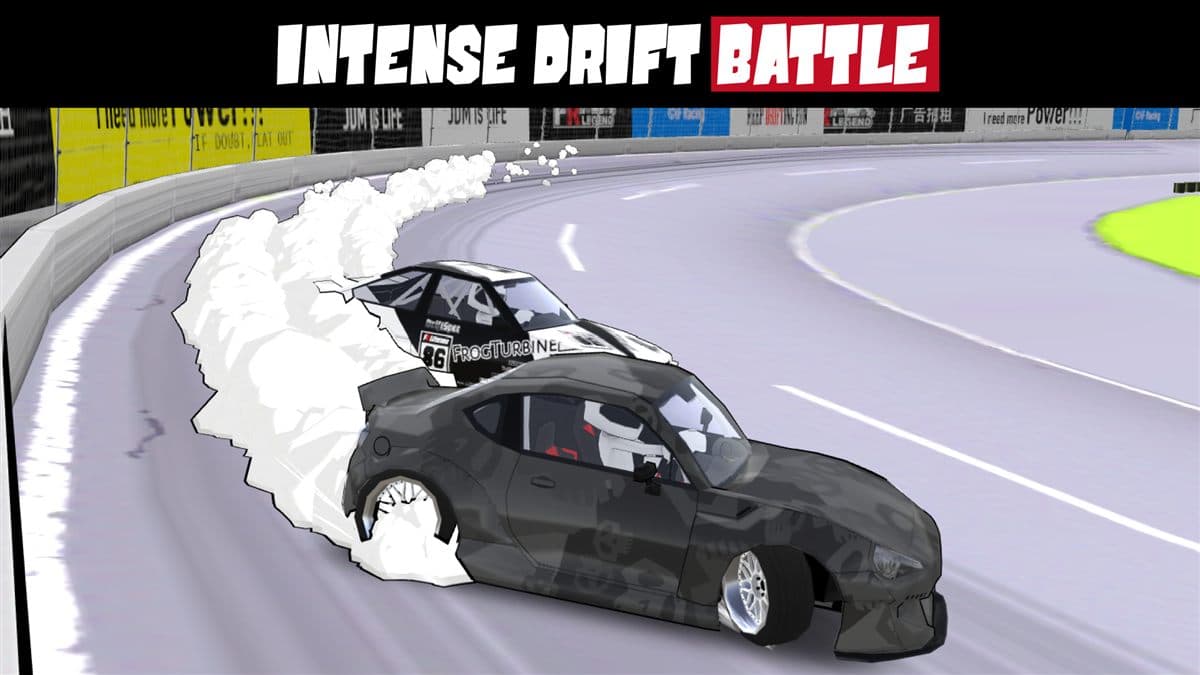
Livery code example table
The codes below show the shape a real code takes, tied to a specific car and field just like the ones you will find in the wild.
| Code | Car | Style | Field |
|---|---|---|---|
| ML4T-7D2Q-9X1B | Silvia S15 | Drift stripes | Body |
| K2N9-WP3R-5CV6 | RX-7 FD | Two-tone gradient | Body |
| Z8F1-QT4M-6H3D | Supra MK4 | Retro livery | Body |
| B7X2-LP9G-4N5A | BMW E36 | Tinted glass | Window |
If one of these does not apply, it usually means the code was cut off during copying. Grab the full string from the source and try again. The RX-7 livery codes page and the Supra mod page both have ready-to-paste designs.
Common livery code problems
| Problem | Likely cause | Fix |
|---|---|---|
| The design does not apply | Spaces or line breaks in the code | Paste as one continuous string |
| Decals sit in the wrong place | Code pasted onto the wrong car | Check the car name in the source |
| The code applies but looks different | Game version mismatch | Find a newer version of the code |
| Only half the livery appears | Window code pasted into the body field | Move the code to the correct field |
FAQ
Are FR Legends livery codes safe to use?
Yes. A livery code is plain text and cannot harm your game or save data. Use common sense about where you get codes, but the codes themselves are harmless.
Can I use a livery code on any car?
No. Codes are built for a specific car body. Pasting onto a different car works, but decals and stripes will not line up correctly.
Why does my code not apply?
Spaces or line breaks in the string, the wrong field, or the wrong car. Check those three before anything else.
Do livery codes work on the PC version?
Yes. Codes are stored the same way on Android and PC emulators. Only the copy and paste shortcuts differ.
Will my livery be lost in an update?
Saved liveries normally survive updates. If a code stops applying after an update, it is usually the shared code that changed, not your saved design.
That is the full livery code system: text that describes a design, pasted into the right field on the right car. Start with a code you like, test it, edit it, and before long you will be sharing designs of your own. For more to read, browse the livery hub, grab ideas from the anime and JDM collection, or check the BMW drift mods for new cars to paint. New here? Head back to our home page for a full tour of the site.