
FR Legends Mod Apk for PC, Windows Install Guide
FR Legends was built for phones, but nothing stops you from sliding on a big monitor. This guide shows you how to run the FR Legends Mod Apk on Windows 7, 10, or 11 using BlueStacks or Nox, from first install to full drift setup.
Why Play FR Legends on PC?
The mod doesn't care what screen it runs on. Put it inside an emulator and everything about the game, physics, saves, mod menu, behaves exactly like it does on Android.
The most obvious reason to move to PC is the screen. FR Legends was designed around touch controls and a phone-sized viewport, but at 1080p or higher you suddenly see the whole drift line at once, corner entry, apex, exit, instead of squinting at a six-inch display. That extra visibility translates into cleaner runs and faster learning, especially on technical tracks like Ebisu Minami or Gunsal Touge where the braking point hides in the scenery.
Then there's the input side. Keyboard mapping and gamepad support give you precise throttle and steering control, and the drift physics built by Twin Turbo Tech respond to every input exactly as they do on touch. You also get no battery drain and no overheating phone, and if you like to stream your Solo Runs or Battle Mode sessions, the emulator window is easy to capture.
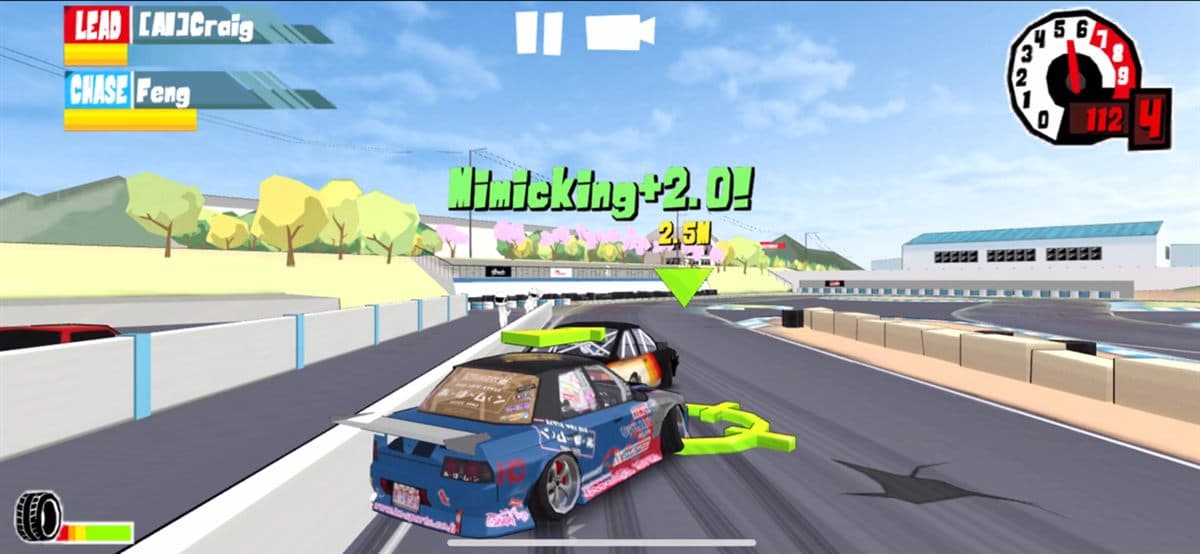
Big screen, clear lines
Spot corner entry and exit points before committing. Flowing courses like Grange Motor Circuit and Drift Park become much easier to read at monitor size.
Keyboard & controller
Map steering to arrow keys or WASD, handbrake to space, and clutch to a mouse button, or plug in a gamepad for console-style drift control.
No battery drain
Long practice sessions on Irwindale Speedway or Meihan Kansai won't cook your phone. The PC takes the heat, and the emulator keeps a steady framerate.
Streaming friendly
Capture the emulator window directly with OBS or ShadowPlay. No mirrors, no phone cameras, just clean 60 FPS drifting for your audience.
How It Works, Android Emulators Explained
An Android emulator is a program that recreates an Android device inside a window on your Windows PC. It's not a port of FR Legends and it's not a web version, the emulator runs the actual Android operating system, and the mod apk installs into that virtual phone just like it would on a real one. The game has no idea it's running on a PC, which is exactly why everything works: the same saves, the same physics, the same mod menu.
Two emulators cover the overwhelming majority of players: BlueStacks and Nox. Both are free, both support Windows 7, 10, and 11, and both can run the mod apk with a simple drag-and-drop install. BlueStacks is the more polished all-rounder with frequent updates; Nox is lighter on older hardware and has long been a favorite for running modded games. You only need one, pick whichever installs cleanly on your machine.
One setting matters more than any other: virtualization. Both emulators run dramatically faster when hardware virtualization (Intel VT-x or AMD-V) is enabled in your BIOS. If your PC's settings menu doesn't show it, the emulator will often still work, just expect slower load times.
BlueStacks vs Nox, Which Should You Use?
Both run FR Legends Mod Apk without issues. The honest difference is in the details, so here's the comparison that matters for a drift game.
| Emulator | Speed | Ease of use | Controller support | Best for |
|---|---|---|---|---|
| BlueStacks | Very fast on modern PCs; frequent performance updates | Simple installer and clear interface, great for first-timers | Built-in gamepad support plus advanced key mapping | Players who want the smoothest experience on a capable PC |
| Nox | Fast and light; slightly friendlier to older hardware | Easy to use, with a toolbar that simplifies apk installs | Full key mapping and gamepad options | Low-end PCs and players who just want to get drifting fast |
You can't go wrong with either. If one gives you trouble, install the other, the mod apk works identically in both, and your in-game save lives inside the emulator, so switching emulators means starting the game fresh inside the new one.
PC Requirements for FR Legends Mod Apk
FR Legends is a lightweight game, so the emulator is the real requirement. Here's what a comfortable setup looks like.
| Requirement | Minimum | Recommended |
|---|---|---|
| Operating system | Windows 7, 10, or 11 (64-bit) | Windows 10 or 11 (64-bit) |
| RAM | 2 GB free for the emulator | 4 GB or more |
| Storage | 2 GB free | 4 GB free |
| Processor | Dual-core CPU | Quad-core or better |
| Virtualization | Not required | Enabled in BIOS (Intel VT-x or AMD-V) |
The mod apk itself is only around 147 MB, so the storage footprint stays small. Older laptops can absolutely handle this, just keep the in-game resolution modest and the framerate stable.
How to Install FR Legends Mod Apk on PC
Five steps from a fresh Windows install to sideways at 60 FPS. The whole process takes about ten minutes.
Install an Android emulator
Download BlueStacks or Nox from its official website and run the installer. Let it finish its first-time setup, which creates a virtual Android device on your PC.
Get the mod apk from our download page
Head to the FR Legends Mod Apk download page and save the current build to a folder you can find easily. It's around 147 MB.
Drag and drop the apk into the emulator
Drag the file from Windows Explorer onto the open emulator window. BlueStacks and Nox both detect the apk and open their installer automatically.
Confirm the install
Click Install in the emulator's prompt and wait a minute or two. If the emulator asks about unknown sources, accept it, that's the standard Android permission for any apk.
Launch and verify the mod menu
Open the game from the emulator's app list. Check that the mod menu button appears on the main screen and your coin balance is effectively unlimited, then pick a car and drift.
Hit a snag? Our install troubleshooting guide covers the most common emulator and Android install errors, including "app not installed" and parsing failures.
Performance Tips for a Smooth Drift Session
FR Legends holds 60 FPS on most phones, and it can do the same on your PC, if the emulator is set up right.
Allocate RAM & CPU cores
In the emulator settings, give the virtual device 2-4 GB of RAM and at least two CPU cores. This is the single biggest performance lever, especially for Multiplayer and Battle Mode.
Set the resolution to 720p
If your framerate dips on technical tracks like Ebisu Minami, drop the in-game resolution to 720p. Drift physics don't care about pixels, and 60 FPS feels far better than 1080p at 30.
Enable the 60 FPS mode
Turn on the game's high framerate option in the settings menu. On a capable PC the emulator will hold it easily, and every transition on Irwindale's oval gets noticeably smoother.
Turn on virtualization
Boot into your BIOS and enable Intel VT-x or AMD-V. Emulators without virtualization fall back to software emulation, which chokes on anything more demanding than a menu screen.
Controls, Keyboard Mapping & Controller Support
Touch controls were designed for a thumb; on a keyboard or gamepad you can be far more precise.
Both BlueStacks and Nox ship with a key-mapping tool that overlays buttons on the game screen. In a few clicks you can bind steering to the arrow keys, throttle to the up key, handbrake to space, and gear changes to Shift and Ctrl. The mod apk doesn't block any of this, it's a standard Android app, so anything the emulator offers works with it.
For controllers, plug in any USB or Bluetooth gamepad and the emulator maps it automatically. Combined with FR Legends' own in-game settings, you get the closest thing to a console drift game on PC. For a full breakdown of mapping layouts and the best key binds, see our controller support guide.
Multiplayer works in the emulator just like on a phone, you'll see the same lobbies, the same players, and the same modded cars. As always with a modded build, treat online rooms with the usual caution: the unlimited money and unlocked cars are safest enjoyed in single-player.
Ready to Drift on Windows?
Running FR Legends Mod Apk on PC is genuinely simple: install an emulator, drag the apk in, and you're done. You get unlimited money, every car and track unlocked, no ads, and a toggleable mod menu, on a screen big enough to actually read the drift line. Version 0.4.8 is current, and the setup takes minutes.
If Windows isn't your platform, we've got you covered: iPhone and iPad owners should read our iOS guide, and everyone else can head back to the homepage for the Android setup. Otherwise, grab the build below and get sideways.