
FR Legends Controller Support, Play With a Gamepad on PC and Android
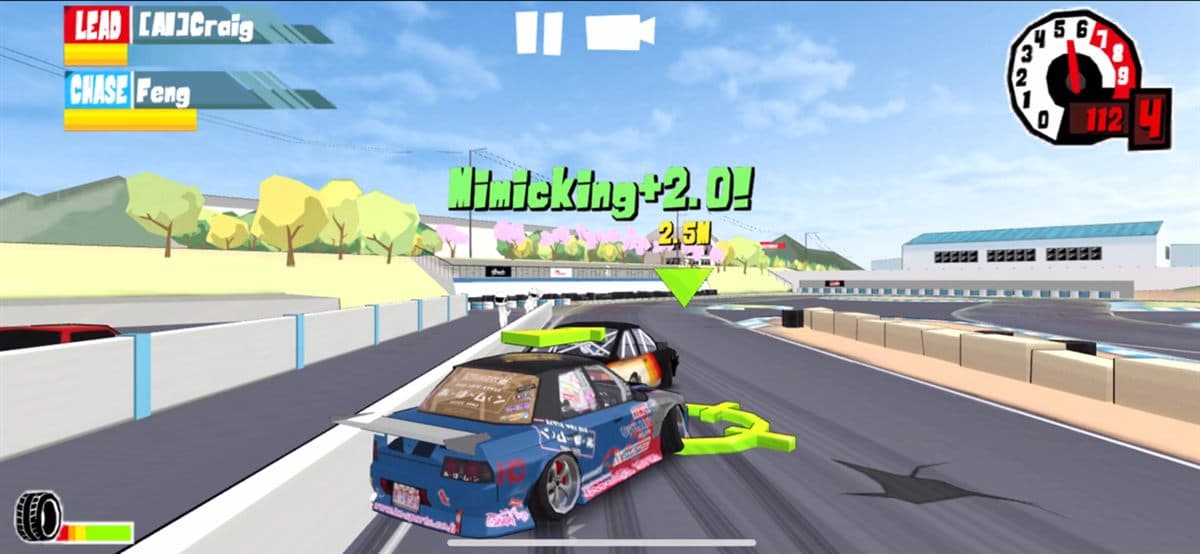
FR Legends is built around touch controls, but a gamepad changes the way the game feels in a way that most players do not expect until they try it. Steering becomes analog, throttle becomes a trigger you can squeeze gradually, and the handbrake sits exactly where your thumb already is. The result is smoother transitions, cleaner entry angles, and far fewer accidental full-lock spins. Controller support exists on Android, iOS, and PC, but each platform works differently, and the setup steps are not always obvious. This guide covers the official support status, how to pair a Bluetooth gamepad on Android, how to map a controller through an emulator on PC, the key bindings we recommend, common problems and their fixes, and a direct comparison between gamepad and touch play. Everything below is tested against the latest version of the game, and we keep it updated whenever support changes.
Does FR Legends Support Controllers?
Short answer: yes. The game has built-in gamepad detection, so you do not need a third-party mapping app on Android or iOS. On Android, any standard Bluetooth or USB-C gamepad is picked up automatically when the game starts, and the control settings screen lets you remap every action. On iOS, support depends on the controller being MFI-certified or an official Xbox or PlayStation pad. On PC you are playing through an Android emulator, and the emulator handles the controller input before the game ever sees it. The sections below walk through each setup in order, starting with what the developers officially support.
Official Controller Support Status
FR Legends has supported physical controllers since early versions, and the feature is present in the current release on both the Google Play store and the App Store. The official version is the most reliable: modified builds from third-party sources usually keep the controller code intact, but sideloaded iOS builds are the exception, since controller support can break when the entitlement or framework changes. If you are on an iPhone or iPad, the official App Store release is the safe choice, and our iOS mod guide explains the differences in more detail. On Android, the FR Legends download from our site works with gamepads exactly like the Play Store version, with no extra steps required.
Playing With a Controller on Android
Bluetooth gamepads
Pairing is the same as any Android game: put the controller in pairing mode, open the Bluetooth settings, and connect. Once paired, launch FR Legends and the game maps the pad automatically. If the game does not react, force close and reopen it, because the controller handshake happens at startup. USB-C controllers and pads with a wireless receiver work the same way and are often the lower-latency choice for competitive play.
Supported controllers list
- Xbox Wireless Controller over Bluetooth, including Series X/S and Xbox One pads
- PlayStation DualShock 4 and DualSense
- Nintendo Switch Pro Controller
- 8BitDo pads, including the Pro 2 and Ultimate models
- Generic HID gamepads, including most wired models
Anything that shows up as a standard HID device will work. Controllers stuck in keyboard mode, which is common on cheap pads, need a mode switch (usually holding the home button) before Android sees them as a gamepad.
Playing on PC With a Controller via Emulator
On Windows, FR Legends runs inside an Android emulator, and the emulator is where the mapping happens. Our full FR Legends for PC guide covers installation step by step, so here we focus on the controller side of the setup.
BlueStacks
BlueStacks detects Xbox and PlayStation pads automatically. Open the gamepad settings inside BlueStacks, make sure controller mode is on, and the game receives native input. You can also bind keyboard keys to the on-screen buttons, but native gamepad passthrough is the smoother option because it keeps analog steering intact.
Nox Player
Nox works the same way. Enable controller support in the settings panel, then launch FR Legends. If your pad is not detected, restart both the emulator and the game, then check the emulator's controller menu before starting a race. Whichever emulator you use, you are still running the Android game, so the in-game binding options from the Android section apply on PC too.
Recommended Key Bindings
The control settings let you remap everything, and this is the layout that gives you the most control while drifting:
| Action | Recommended bind |
|---|---|
| Throttle | Right trigger, analog |
| Brake | Left trigger, analog |
| Steering | Left stick |
| Handbrake | Right bumper or B / Circle |
| Camera | Left bumper or Y / Triangle |
| Reset car | Start or Select |
Two binds matter more than the rest. Keep throttle analog on the right trigger so you can modulate power mid-slide, and keep the handbrake on a bumper or face button that your thumb can reach without leaving the steering stick. Our best drift settings and tuning guide pairs well with this layout, since the right tune makes the most of analog input.
Controller vs Touch Controls for Drifting
Touch controls are surprisingly good in FR Legends: the on-screen steering wheel gives you full lock instantly, which suits the game's arcade style. A controller does the same thing with more nuance. The analog stick gives you proportional steering, the triggers let you hold a partial throttle through a transition, and muscle memory builds faster because your hands never cover the screen. The tradeoff is that touch players can react to snap oversteer a little quicker, since wheel input is instant, while a stick has travel time. Most players find the transition takes a few sessions, then the controller wins on consistency. For technique, our how to drift guide covers entry, transition, and exit in detail, and it applies equally to both input methods.
Common Controller Problems and Fixes
- Gamepad not detected: restart the game after pairing, or switch the pad out of keyboard mode.
- Bluetooth lag or dropped input: connect over USB-C or a receiver, and move closer to the device.
- Controller works in menus but not in races: open the control settings and confirm the layout is set to gamepad, not touch.
- Analog throttle does nothing: some pads report as digital only, so use the in-game remap to put throttle on a button instead.
- Emulator ignores the pad: enable controller mode in BlueStacks or Nox before launching the game.
If the game itself will not start at all after you update, the problem is the install rather than the controller; the not installing fix guide walks through storage permission, unknown sources, and corrupt download issues.
Controller Setup at a Glance
| Platform | Connection | Setup | Best option |
|---|---|---|---|
| Android | Bluetooth | Pair, then launch the game | Xbox Wireless Controller |
| Android | USB-C | Plug in, then launch the game | Any wired HID pad |
| PC via BlueStacks | Controller or keyboard | Enable gamepad mode, remap in game | Xbox or PS pad |
| PC via Nox | Controller or keyboard | Enable controller support, restart emulator | Xbox or PS pad |
| iOS | Bluetooth | Use the official App Store build with an MFI or Xbox/PS pad | DualSense or Xbox Wireless |
A quick word on older releases: if a newer update changed control behavior you liked, previous builds are archived in the old versions section, and they all keep the same gamepad support.
FAQ
Can I play FR Legends with a controller on Android?
Yes. Pair any Bluetooth or USB gamepad and the game detects it automatically; remap controls in the settings screen if you want a different layout.
Does FR Legends support keyboard on PC?
Yes, through the emulator. BlueStacks and Nox can map keyboard keys to the touch controls, but a gamepad is recommended for analog steering and throttle.
Which controller is best for FR Legends?
Any Xbox-style pad with analog triggers, such as the Xbox Wireless Controller, gives the smoothest throttle control. PlayStation pads work just as well.
Why is my controller not detected in FR Legends?
Restart the game after pairing, make sure the pad is in gamepad mode rather than keyboard mode, and check the emulator's controller settings on PC.
Is a controller better than touch for drifting?
For consistency and precision, yes, especially once you get used to the analog inputs. Touch is still fine for casual play.
If you are picking a car to pair with your new setup, the FR Legends car tier list ranks the best drifters, and the tracks list shows which circuits reward a clean, controlled line over raw angle. For a different kind of competition, the battle mode guide explains the scoring system and how controller input helps you chain longer runs. More controller updates and other tips land on the FR Legends blog regularly, so check back whenever a new game update drops.